Generate AI Images Offline on Mac, Free and Unlimited
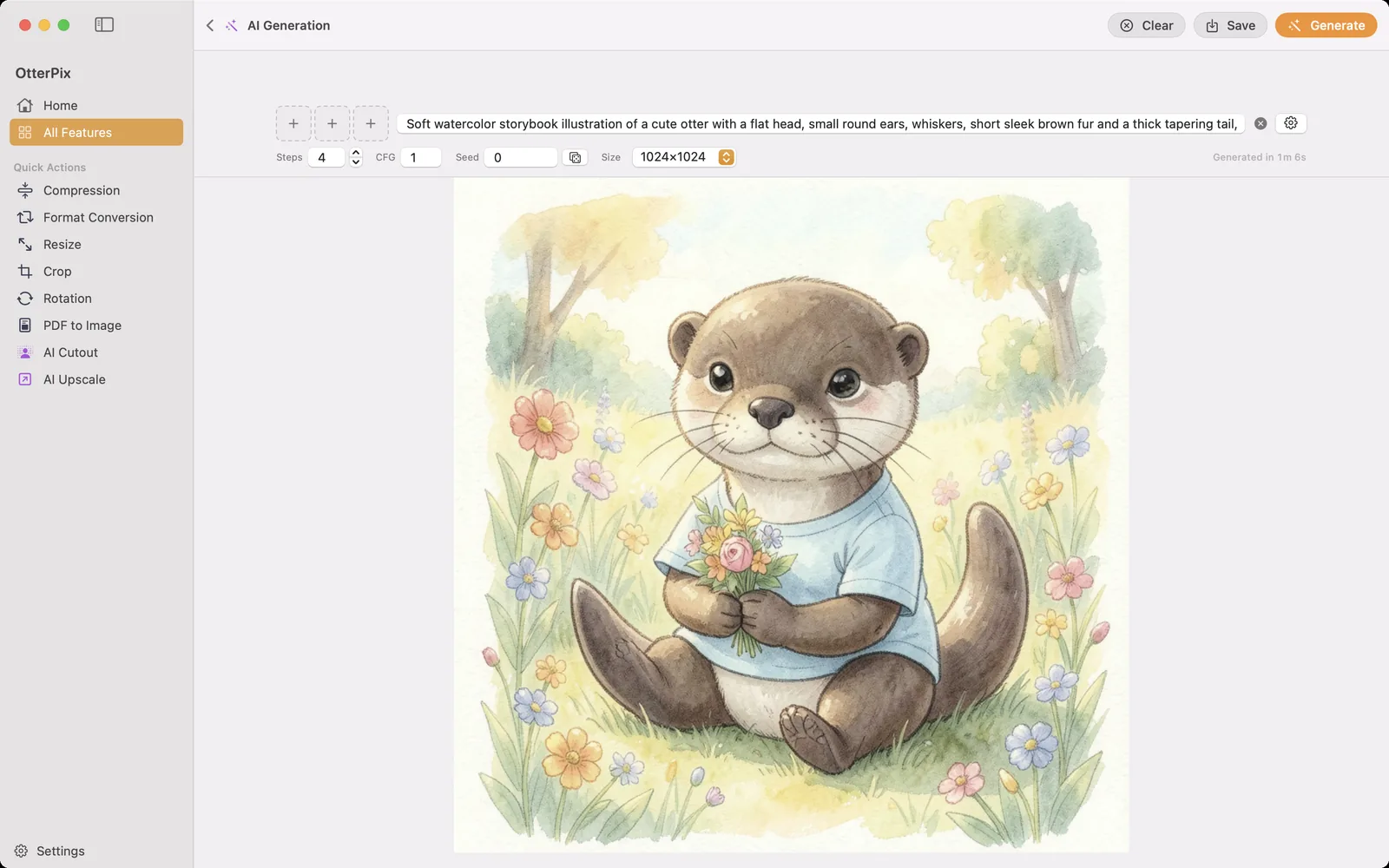
Most AI image generators live in a browser tab. You type a prompt, it goes to a server, and every image costs credits from a monthly allowance. That model has three catches: you pay per picture, you need a connection, and your prompts and reference photos end up on someone else’s computer.
OtterPix includes AI Generation, a text-to-image tool that runs a local image model on your Mac’s Apple silicon. After a one-time download it works offline, it is free, and there is no limit on how many images you make. Your prompts and reference images never leave the Mac.
What you need
- A Mac with Apple silicon running macOS 14 or later.
- 16 GB of memory or more is recommended. Generation is the most demanding job in the app.
- Free disk space for the model files: about 5.1 GB for the smallest setup, up to about 12.7 GB for the highest-quality one.
How to generate an image
- Open OtterPix, click All Features in the sidebar and choose AI Generation.
- Type your prompt in the field that says “Describe the image you want to create”. Be concrete: subject, style, lighting, setting. The Try a prompt row offers starting points.
- Optionally add up to three Reference images in the slots beside the prompt. With references, describe how to transform or combine them.
- Check Model precision and Text encoder precision. The total download size for your choice is shown next to them, so nothing large starts by surprise.
- Pick a Size: 512×512, 1024×1024 (the default), 2048×2048 or Custom.
- Click Download & Generate the first time, or Generate once the model is installed. The image appears in the large pane below.
- Click Save (⌘S) to keep it.
Choosing precision: quality versus size
The two precision choices decide how large the download is and how much memory generation uses. OtterPix picks a sensible starting point for your Mac, and you can change it before the first download or later.
- Model precision 4-bit (about 2.18 GB): the smallest and fastest. It is the starting point on Macs with less than 16 GB of memory.
- Model precision 8-bit (about 3.88 GB): the recommended balance, and the starting point on Macs with 16 GB or more.
- Model precision 16-bit (about 7.75 GB): the highest fidelity and the slowest.
- Text encoder precision 4-bit (about 2.28 GB) is smaller and faster; 8-bit (about 4.29 GB) follows your prompt more closely.
Downloads can be paused, resumed or cancelled, here or under Settings → AI, and a partial download continues where it stopped instead of starting over. Once the files are on disk, generation starts automatically and needs no network.
Reference images, sizes and seeds
One reference image steers the style or the subject: turn a photo into a watercolor, or keep a character and change the scene. Two or three references can be combined, for example a person from one image placed into the setting of another. Hover over a filled slot to remove it.
Custom takes any width and height from 64 to 2048 pixels, rounded to a multiple of 16, and the chain-link button keeps the aspect ratio while you type. Above the image, Steps, CFG and Seed give finer control. The same seed with the same prompt and settings reproduces the same image; the dice button picks a new seed when you want variations.
Tips for better results
- Name a style and a medium. “A watercolor illustration of a lighthouse at dusk, warm light, soft paper texture” works much better than “nice lighthouse picture”.
- Keep the seed fixed while you refine the wording, so you can see what each change does. Randomize it when you want to explore.
- How long an image takes depends on your Mac’s chip, the size and the precision. A smaller size is a quick way to test a prompt.
- Close memory-hungry apps before a large image if your Mac has 16 GB or less.
Frequently asked questions
Is AI Generation really free?
Yes. AI Generation is one of OtterPix’s free features, with no credits, no subscription and no daily limit. The only cost is disk space for the model download.
Does it work without an internet connection?
After the model files are downloaded, yes. Every image is generated on your Mac, and your prompts and reference images are never uploaded.
How big is the download?
It depends on the precision you choose: about 5.1 GB for the smallest setup, about 6.8 GB for the default on a Mac with 16 GB of memory, and up to about 12.7 GB for the highest quality. The app shows the exact total before the download starts.
Which Macs can run it?
Any Mac with Apple silicon on macOS 14 or later. 16 GB of memory or more is recommended; with less, the smaller 4-bit setup is the better choice.
Can I use my own photo as a starting point?
Yes. Add up to three reference images next to the prompt. One reference steers style or subject; several can be combined into one image.
Get OtterPix for Mac
Free on the Mac App Store. Every basic tool is free forever, and nothing you open ever leaves your Mac.

Related guides
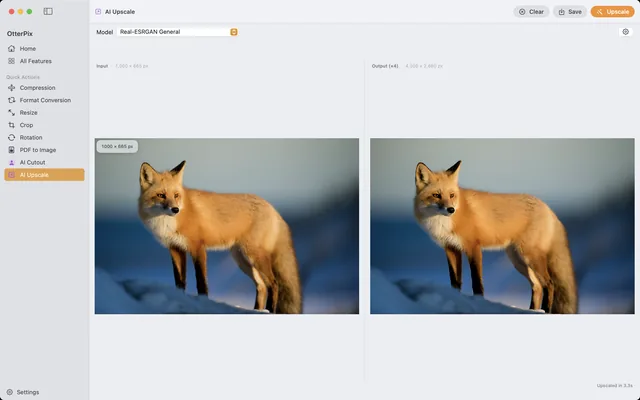
Upscale Images on Mac: 4× Larger with Local AI
Too small for print? Enlarge photos up to 4× with on-device AI — right on your Mac.
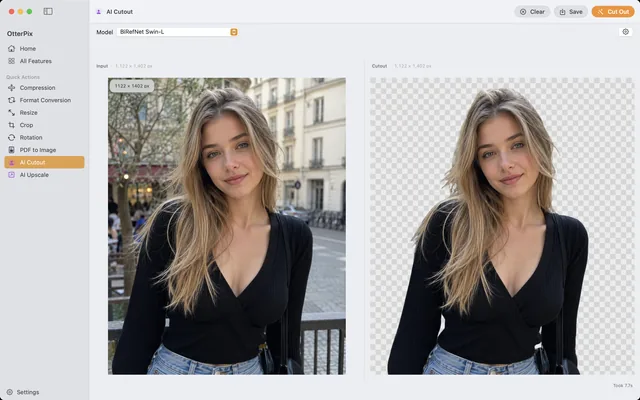
Remove Image Backgrounds on Mac — Local AI, No Uploads
Product shots and avatars on a clean transparent PNG — cut out on your Mac, no uploads.
Extract Text from Images and Scanned PDFs on Mac, Offline
A scanned PDF you can’t search or copy from? Turn it into Markdown on your Mac, offline.