Restore Blurry Faces in Old Photos on Mac (AI Face Restore)
Almost every family has that shoebox of old photos — or the hastily scanned folder made from it. Grandparents at their wedding, a class photo from the seventies, the only picture of someone you still think about. The scans look fine as thumbnails; then you zoom in, and the faces dissolve into a soft blur.
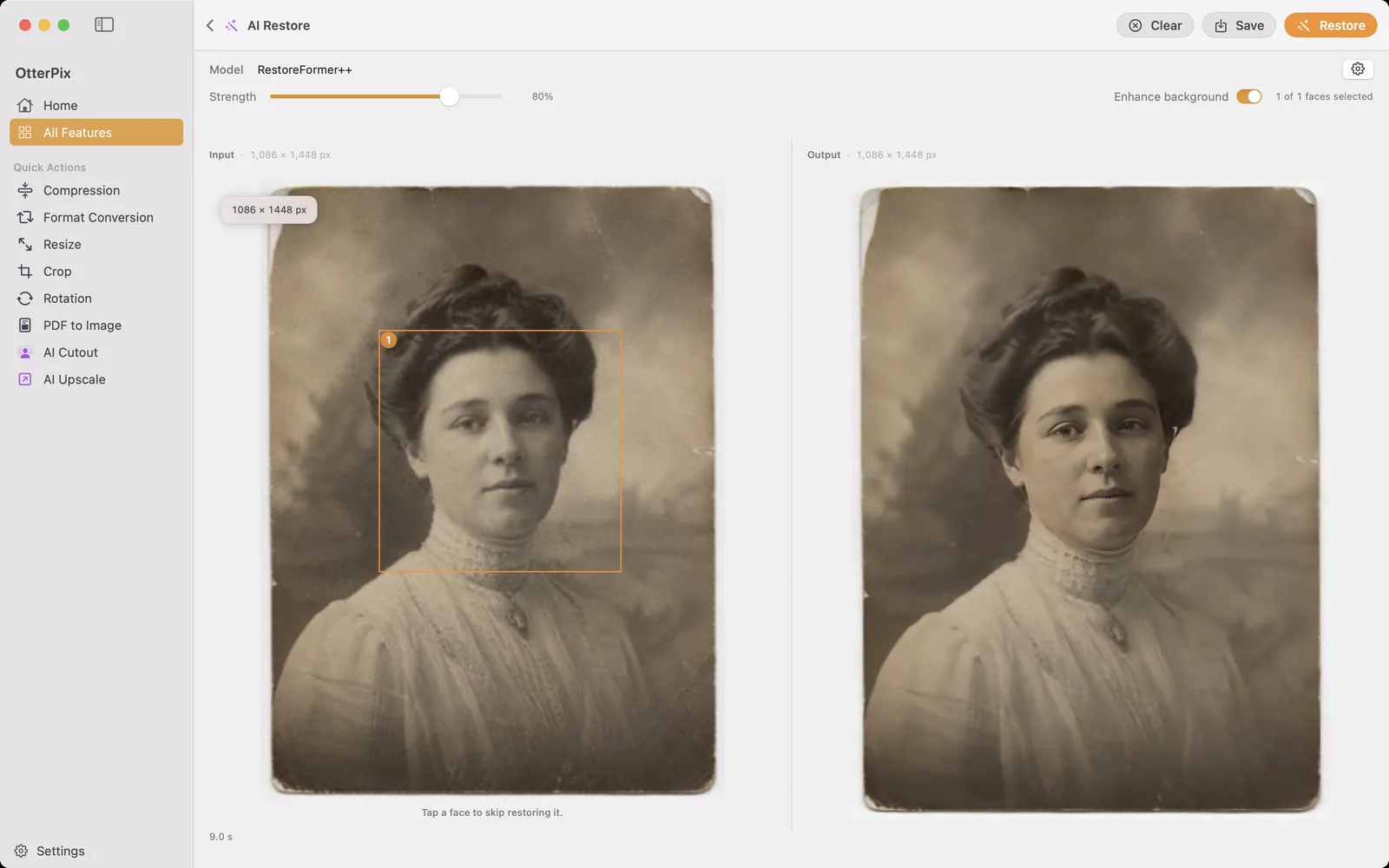
OtterPix’s AI Face Restore sharpens exactly those faces, right on your Mac. It detects every face in the photo, rebuilds the blurred features, and blends the result back into the original at a strength you control. And because these are family photos — the pictures you would least want sitting on a stranger’s server — everything runs on-device. Nothing is uploaded, ever.
What AI Face Restore fixes — and what it doesn’t
Give it a scanned print, an old digital photo or a small crop, and it finds each face, reconstructs soft, blurry or low-quality facial features into a sharp, natural-looking version, and blends the restored face smoothly back into the picture. When people search for how to restore old photos, this is usually the part they actually mean: making the faces recognizable again.
- Scratches, tears and creases are not repaired — a crack across the sky stays a crack across the sky.
- The background is untouched: the room, the clothing, everything around the faces stays as scanned.
- Fading and yellowing are not corrected — the photo keeps its age; only the faces get their sharpness back.
That narrow scope is deliberate. It keeps the result honest — no invented backgrounds, no repainted photo — and it concentrates the effort on the one thing your eye goes to first in a family picture: the face.
How to restore faces in an old photo with OtterPix
- Open OtterPix and click AI Restore in the AI section of the home screen.
- Drag your scanned photo onto the drop zone, or click it to browse for the file.
- OtterPix detects every face automatically and marks each one with a numbered box — that box is the region the AI will work on.
- Click Restore. On first use, OtterPix downloads its face-restoration model once (about 280 MB); after that, every run works without a connection.
- When the result appears, drag the Strength slider until the blend looks right. The preview updates instantly — no need to run the restoration again.
- Click Save (⌘S) and choose where to keep the restored copy. Your original scan is never modified.
Group photos: leave some faces alone
In a group shot you often don’t want every face processed — one person may already be sharp, or you only care about the couple in the middle. Click a numbered box to skip that face, and click it again to bring it back; a “2 of 5 faces selected” counter keeps track. You can toggle faces before you run Restore or after the result is in — either way, the output updates without a fresh run.
Small, low-resolution scan? Pair it with AI Upscale
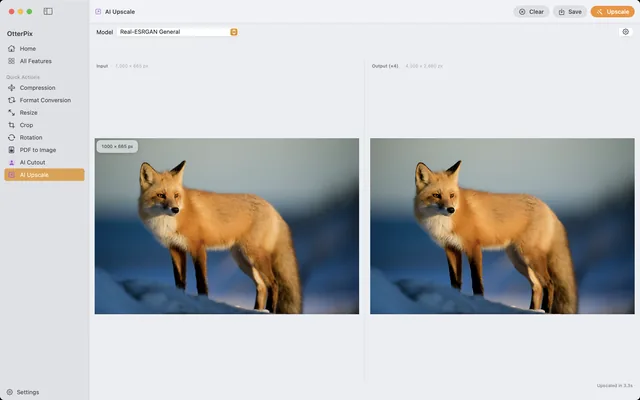
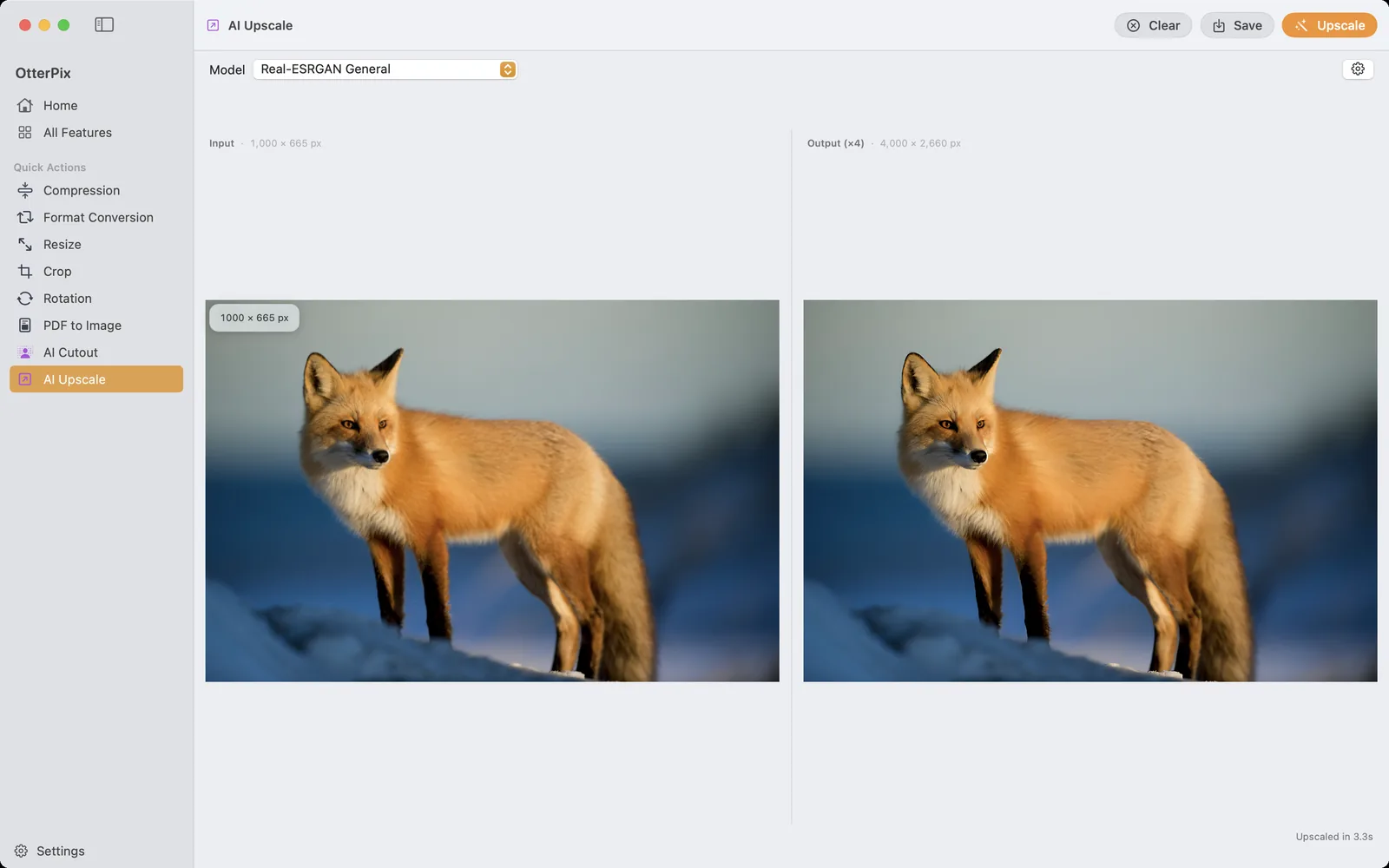
Face restoration sharpens features; it doesn’t add pixels. If the whole print is small — a pocket-sized photo scanned years ago at low resolution — the restored faces will look better, but the image itself is still tiny. For that, save the restored version and run it through OtterPix’s AI Upscale, which enlarges images up to 4× while keeping detail crisp. Together they cover the two classic old-photo problems: blur in the faces, and not enough resolution overall.
One free restore every day
AI Face Restore is one of OtterPix’s Pro features, but you don’t have to pay to try it on a real photo: every Pro AI tool includes one free successful run per day — and it’s counted per photo, not per attempt. Load a scan, run Restore, play with the Strength slider, exclude a face and run it again: on that same photo, it all counts as the one daily use. OtterPix Pro removes the daily limit.
Frequently asked questions
Can AI Face Restore fix scratches, tears or creases?
No — it restores faces only. Scratches, tears, creases and stains stay as they are. The tool sharpens facial features and deliberately leaves the rest of the photo untouched, so you always know what changed.
Will the background of my photo change?
Not by default — everything outside the faces stays exactly as scanned. There is an optional “Enhance background” switch (off by default) that applies a general enhancement pass to the rest of the image, but it is not scratch or damage repair.
Does it work on photos with several faces?
Yes. All faces are detected automatically and restored in one run, each marked with a numbered box — and you can click any box to leave that face out. Group portraits are exactly what the numbered boxes are for.
What scan resolution gives the best starting point?
Scan at the highest resolution your scanner comfortably produces — the more detail the restoration has to work with, the more natural the result. If all you have is a small, low-resolution file, restore the faces first and then enlarge the photo with AI Upscale (up to 4×).
Are my old photos uploaded anywhere?
Never. The restoration runs entirely on your Mac’s Apple silicon. The only download is the AI model itself, fetched once on first use (about 280 MB) — after that it works without a connection, and no image ever leaves your machine.
Try it on your own photos
OtterPix is free on the Mac App Store — run each Pro AI feature free once a day. OtterPix Pro unlocks unlimited runs.