Remove Objects (and People) from Photos on Mac
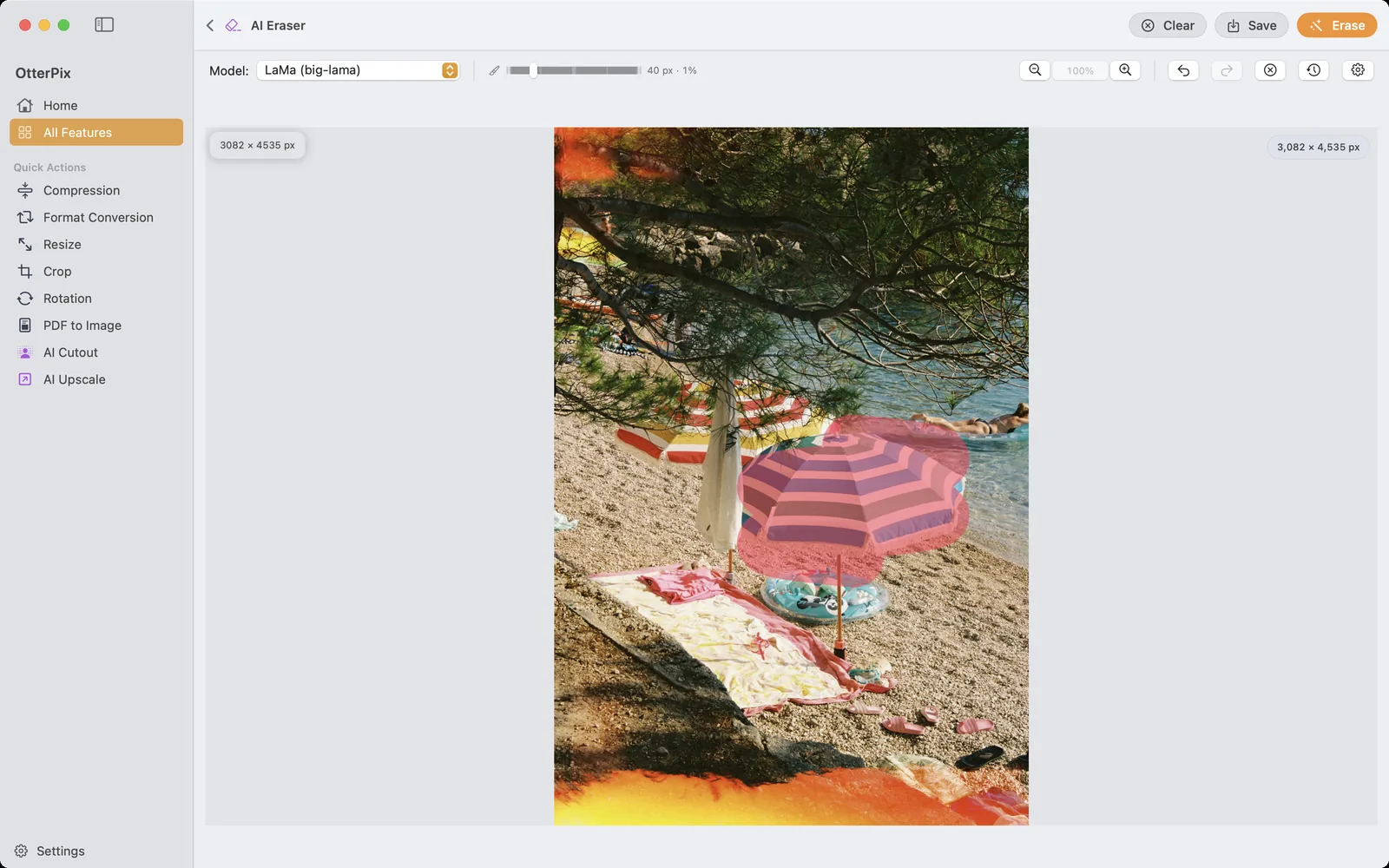
The photo is good — the light, the framing, the moment. It’s just that a stranger wandered into the corner, a power line cuts across the sky, or a trash can sits exactly where your eye lands. OtterPix removes objects like these from photos right on your Mac: brush over what you want gone, click Erase, and on-device AI fills the gap with matching background.
There’s no selection lasso to fight, no clone-stamping by hand, and no upload — the photo never leaves your machine. And because you can run as many passes as you need on the same image, you can clear a whole street scene one distraction at a time.
What the AI Eraser actually does
The AI Eraser is an inpainting tool. You paint a mask over an area, and the AI reconstructs what the background would plausibly look like there — continuing the pavement, the sky, the wall or the water so the object simply isn’t part of the scene anymore. That’s a different job from cloning by hand in a classic editor, where you copy nearby pixels patch by patch and hope the seams don’t show. Here the fill is generated to match its surroundings, and it usually blends in without visible edges.
Typical candidates: removing tourists from travel photos, photobombers at the edge of the frame, overhead wires, signs, road cones, trash cans, a stray shopping bag on the grass. If you can paint over it, you can ask the AI to remove it — people included.
How to remove an object from a photo in OtterPix
- Open OtterPix and click AI Eraser in the AI section of the tools grid. On first use the app downloads its eraser model once (about 200 MB) — after that it works offline.
- Drag your photo into the window, or click to browse for it.
- Pick the Brush tool (B) and set the brush size — small for a wire, bigger for a person. Then paint over the thing you want gone. Cover it completely, with a little margin around the edges.
- Click Erase (or press ⌘⏎). After a moment, the painted area fills in with matching background.
- Inspect the result. If a shadow, a foot or a faint outline is left over, paint over just that remainder and click Erase again — each pass builds on the previous one.
- Repeat for the next tourist, the next wire, the next distraction until the scene is clean. ⌘Z takes back a pass that went wrong; Revert to original starts you over.
- Press Save (⌘S) and choose where the cleaned-up photo goes. Your original file stays untouched.
Getting clean results — and honest expectations
One photo, many passes is the intended workflow, not a workaround. Removing a person from a photo usually comes out cleaner in two or three small steps — the body first, then the shadow, then a leftover edge — than in one giant brush stroke. For fiddly targets like wires against branches, zoom in first (⌘=).
What fills in best: regular, repeating surroundings. Sky, water, grass, sand, pavement, plain walls — the AI has plenty of consistent context to continue, and the result is usually hard to spot. What’s harder: large objects on busy, structured backgrounds. If a person covers half a shop window full of lettering, the AI has to invent that lettering — and invented detail can look smudged or bent. Plan for more passes there, and sometimes a tighter crop is the more honest fix.
Two limits worth knowing. The fill is generated, so on complex scenes it’s a plausible guess at what was behind the object — not a recovered photograph of it. And erasing changes only the area you painted; the rest of the frame is left exactly as it was.
Erase, or blur? When anonymizing is the better call
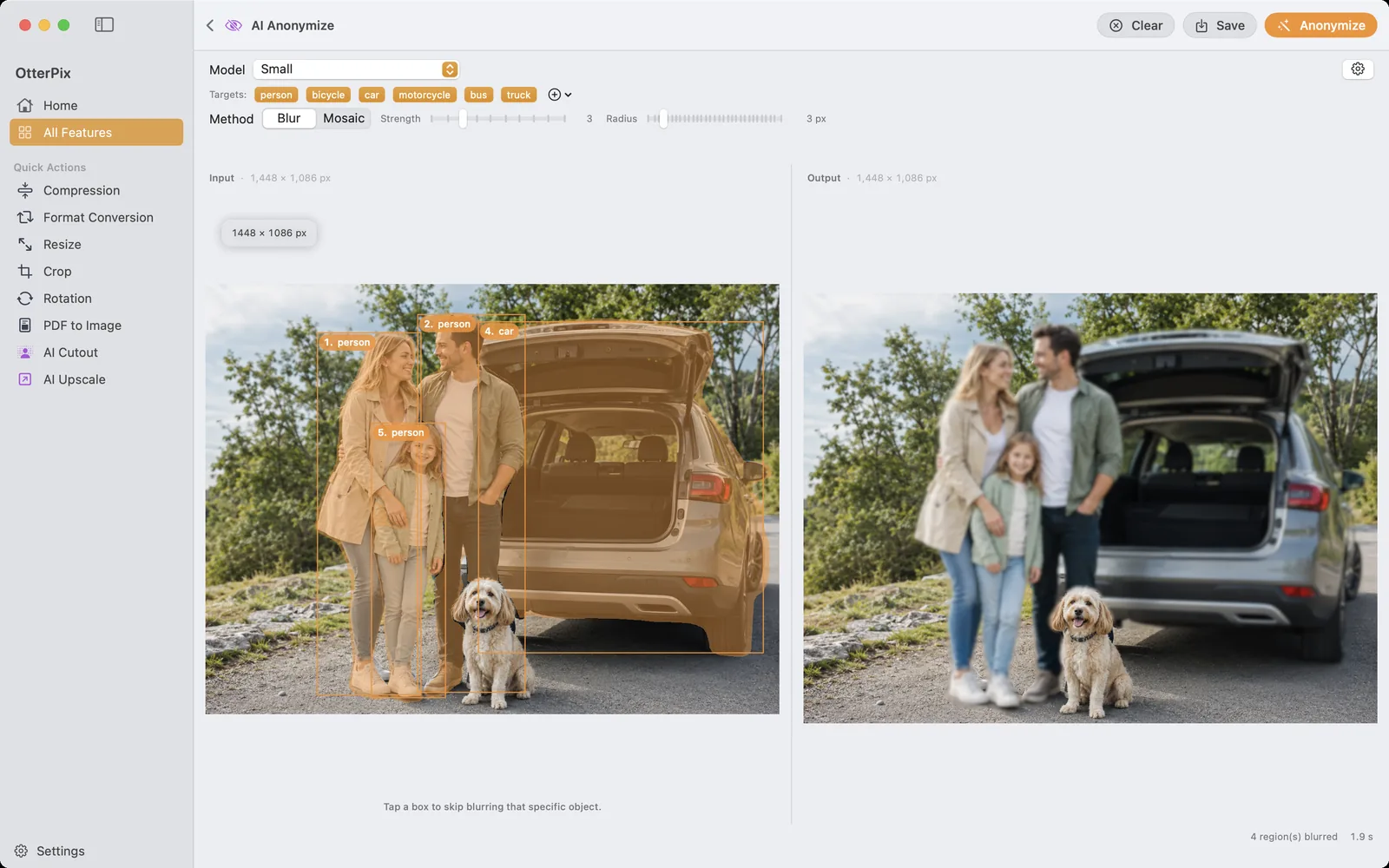
Erasing removes someone from the scene entirely — right for travel shots and clean compositions. But if you publish documentary-style photos — street scenes, event coverage, real-estate shots — you often don’t want to pretend nobody was there; you want people unrecognizable. That’s a different tool: AI Anonymize detects people and vehicles in the photo automatically and blurs or pixelates them, and you can toggle each detection on or off individually.
Frequently asked questions
Can I remove a person from a photo completely?
Yes. Brush over the person generously — include their shadow — and click Erase; the AI fills the area with background. On even surroundings like pavement or grass the person disappears cleanly; in front of complex backgrounds, plan for two or three refining passes.
Does erasing reduce the quality of the rest of the photo?
No. The fill is applied only where you painted — the erase step doesn’t alter the rest of the frame. Your original file stays untouched too: you save the cleaned-up result as its own file, wherever you choose.
Does the AI Eraser work offline?
Yes. On first use OtterPix downloads its eraser model once (about 200 MB); after that, erasing runs entirely on your Mac’s Apple silicon with no internet connection, and nothing is ever uploaded.
How does the free daily use work?
Without Pro, each AI feature gives you one free successful run per day — counted per photo, not per click. Load one image and you can paint, erase and refine it as often as you like within that single free use. A second photo on the same day needs OtterPix Pro.
What about a large object on a busy background?
Honestly: the AI invents what it fills in. On repeating textures that’s rarely visible; where precise detail is missing — lettering, faces, tight patterns behind the object — the result can look soft or warped. Work in several smaller passes, and if it won’t come clean, a tighter crop is sometimes the better fix.
Try it on your own photos
OtterPix is free on the Mac App Store — run each Pro AI feature free once a day. OtterPix Pro unlocks unlimited runs.

Related guides
Blur Faces & License Plates in Photos on Mac, Automatically
Street or event photo? On-device AI finds people and vehicles — you pick who stays sharp.
Remove Image Backgrounds on Mac — Local AI, No Uploads
Product shots and avatars on a clean transparent PNG — cut out on your Mac, no uploads.
Restore Blurry Faces in Old Photos on Mac (AI Face Restore)
Soft, blurry faces in scanned family photos? Sharpen them on your Mac — nothing uploaded.