Blur Faces & License Plates in Photos on Mac, Automatically
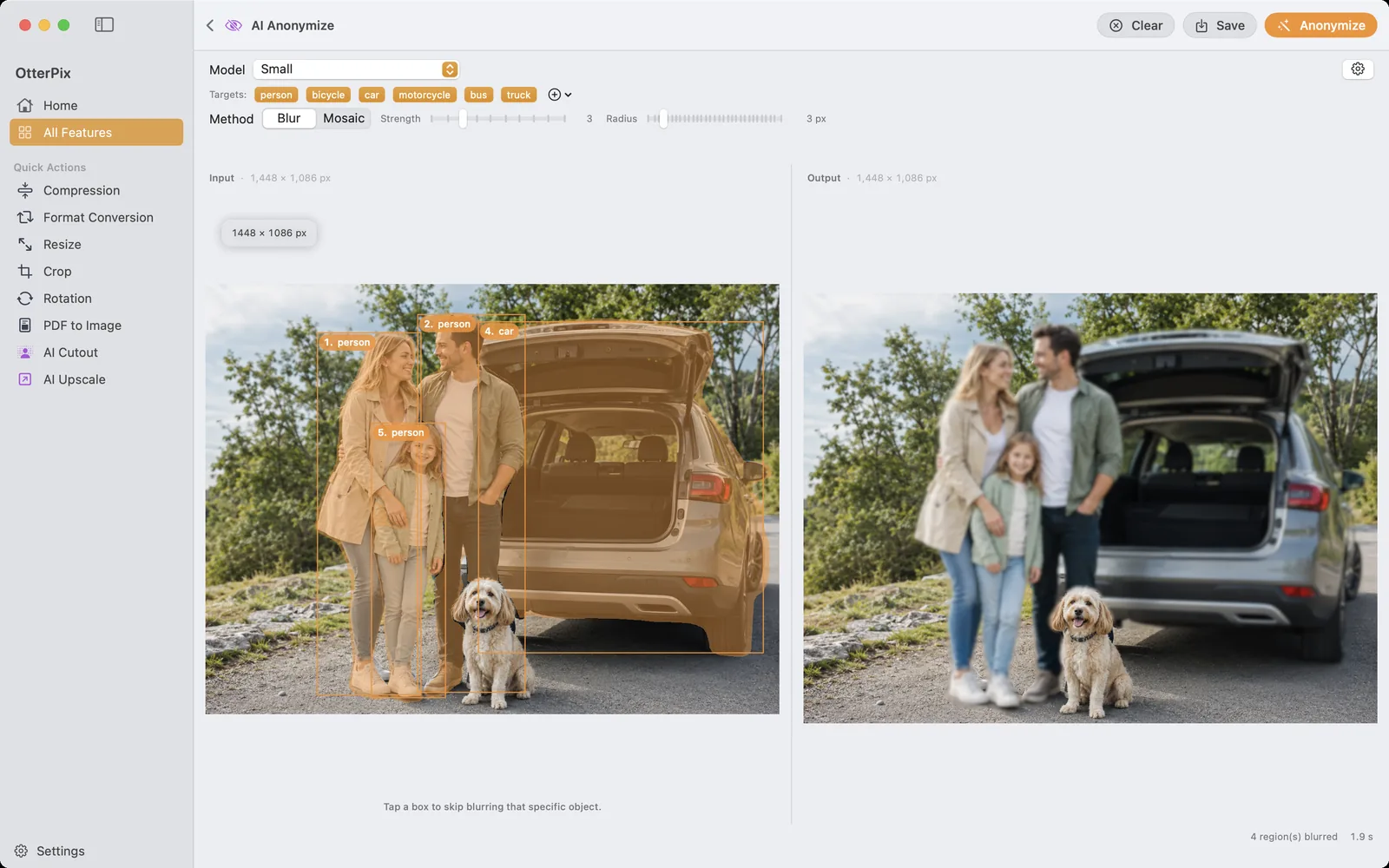
Some photos are easy to publish. The tricky ones are full of people who never agreed to be in your post — the crowd behind your friends at a street market, the car that parked its license plate right into your café shot, the other kids in a school-event picture. AI Anonymize in OtterPix is built for exactly those: it detects every person and vehicle in the photo, blurs or mosaics them, and then lets you decide — one by one — who stays recognizable.
There is also a quieter point that matters more here than anywhere else: a tool whose job is to protect the people in your photos should not begin by looking at your photos. OtterPix runs both detection and blurring on your Mac’s Apple silicon. The unedited original never touches a server, because nothing is uploaded in the first place.
When blurring faces and plates is the right call
A useful rule of thumb: the people you photographed on purpose can be asked — everyone else ended up in the frame by accident. Anonymizing is how you publish the moment without publishing the bystanders. Typical cases:
- Street and travel photography — the scene is the subject; the strangers in it are not.
- Event recaps and community posts — your friends said yes, the rest of the room didn’t.
- School, club and team photos — other people’s kids deserve extra caution, whether in a parents’ group chat or a public feed.
- Selling a car online — the listing needs your car sharp; the passers-by and the neighbor’s plate in the background don’t have to come along.
How to blur faces and license plates in OtterPix
Detection is automatic; your judgment comes after. The whole loop looks like this:
- Open OtterPix and click AI Anonymize in the AI section of the tools grid.
- Drop your photo into the Input pane on the left.
- Click Anonymize. On-device AI finds the people and vehicles in the shot, numbers each detection, and shows the blurred result in the Output pane.
- Pick a Method: Blur for a soft, photographic look, or Mosaic for classic pixelation. The Strength and Radius sliders control how heavy the effect is.
- Click any numbered box in the input to exempt that person or vehicle — the output recomposes instantly, with no re-run. Click again to blur it again. The Targets chips switch whole classes at once, such as every car.
- Click Save (⌘S) and choose where the anonymized copy goes. Your original file stays untouched.
Blur or mosaic — which one to pick?
Both hide identity; they send different signals. A blur reads as photographic — softened, like a shallow depth of field — so the mood of the image stays intact. A mosaic reads as deliberate redaction: nobody mistakes those squares for an accident, which is exactly why it suits license plates, screens and anything document-like.
Two practical tips. First, be generous with the Strength slider — a timid blur can leave someone recognizable to people who know them, and you can judge the result live in the output pane. Second, stay consistent within a series: mixing a soft blur on one photo with a hard mosaic on the next turns the redaction itself into the story.
Keep yourself sharp, anonymize everyone else
The per-instance toggles are what make this a publishing tool rather than a blunt filter. Detection deliberately casts a wide net first — every person, every vehicle — and then hands you the guest list. You keep the subjects who agreed: yourself in the conference photo, your family at the trailhead, your own car in the listing. Whoever just wandered through the frame gets blurred.
Because a toggle only recomposes the existing result instead of re-running detection, each click updates the preview immediately — auditioning “blur everyone except…” combinations costs nothing. And if you haven’t subscribed to Pro: the daily free run is counted per loaded photo, not per adjustment. Run once, toggle as much as you like, switch Blur to Mosaic, export — all of it is still that day’s single free use.
When you’d rather remove than blur
Sometimes anonymized isn’t what you want — you want gone. A photobomber right next to you, a trash bin in an otherwise clean scene, a stray water bottle on the table. That’s a different job, and it belongs to AI Eraser: paint over the object with a brush and the background fills in naturally, as if it had never been there. You can keep refining the same photo until the last trace is gone.
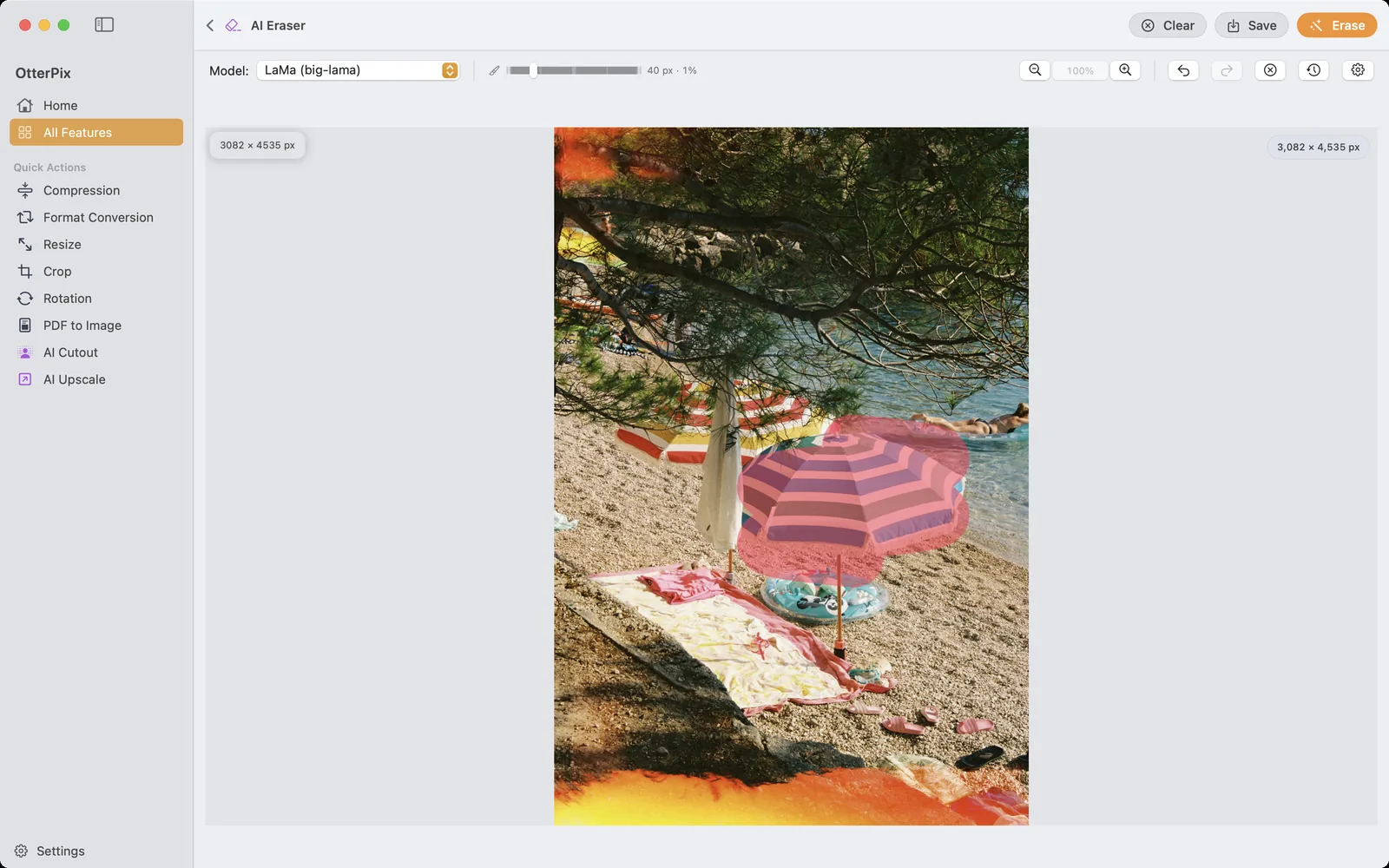
A simple way to decide: blur when the honest record matters (the person was there, the car was parked there), erase when the object is just visual noise. And before anything goes online, remember the photo’s invisible layer — EXIF metadata can carry the exact GPS coordinates of where you took the shot. OtterPix’s free Metadata tool strips that in a couple of clicks; the related guide below walks through it.
Frequently asked questions
Should I use blur or mosaic to hide faces?
Both work — pick by signal. Blur looks photographic and keeps the image calm; mosaic is unmistakably deliberate, which suits license plates and anything document-like. Whichever you choose, set the strength high enough that the person or plate is genuinely hard to identify, and check the result in the output pane at full size.
Can I keep one person sharp and blur everyone else?
Yes — that’s the core workflow. AI Anonymize detects every person and vehicle first, then you click any numbered detection to exempt it. The preview updates instantly with each toggle, so “everyone except me” or “every car except mine” takes seconds.
What if the detection misses a face or a plate?
Treat detection as a strong first pass, not a verdict — always review the output before publishing. Very small, cut-off or heavily obscured subjects can slip through. For a stray leftover, AI Eraser is a good companion: paint over it and remove it from the photo entirely.
Does OtterPix blur faces in videos too?
No. AI Anonymize works on still images only — video isn’t supported. For a clip, export the frames you plan to publish as images and anonymize those.
Why does it matter that anonymization runs on-device?
Because the input is exactly the thing you’re trying to protect. Uploading an unblurred photo to a cloud service so it can come back blurred means the original — faces, plates and all — has already left your hands. OtterPix runs detection and blurring on your Mac: the model is downloaded once on first use, and after that the feature works without a connection. Nothing is uploaded at any point.
Try it on your own photos
OtterPix is free on the Mac App Store — run each Pro AI feature free once a day. OtterPix Pro unlocks unlimited runs.

Related guides
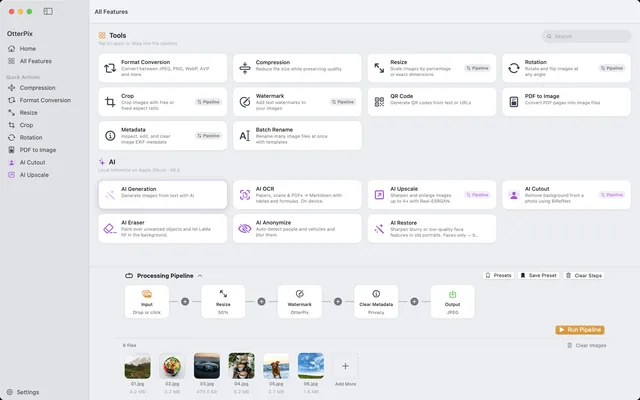
View & Remove EXIF Data on Mac (GPS Location Included)
Your photos know where you live. See the EXIF and GPS inside, then strip it — on your Mac.
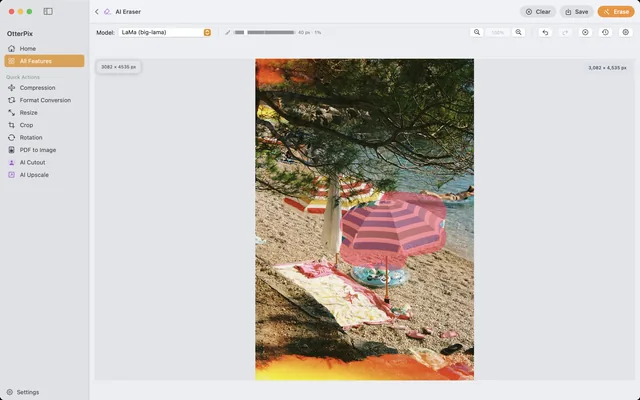
Remove Objects (and People) from Photos on Mac
Tourists, wires, trash cans — brush over them and AI fills the gap, right on your Mac.
Remove Image Backgrounds on Mac — Local AI, No Uploads
Product shots and avatars on a clean transparent PNG — cut out on your Mac, no uploads.