View & Remove EXIF Data on Mac (GPS Location Included)
Every photo from a phone carries a hidden report. Inside an ordinary JPEG or HEIC sit the device that shot it, the second the shutter fired and — if location services were on — GPS coordinates precise enough to point at a front door. None of it is visible in the picture, and that is exactly why it travels further than most people think.
OtterPix handles both halves of the fix, free of charge: the Metadata Inspector shows every EXIF, GPS and IPTC field a photo carries, lets you edit individual entries, and strips the lot before you share. The loop closes neatly, too — a privacy tool has no business uploading your photos to a server to “clean” them, so everything here runs on your Mac and nothing leaves it.
What’s actually hiding in your photos
Three families of metadata matter. EXIF is the technical block your camera or phone writes automatically. GPS tags record where the shot was taken. IPTC is the publishing-style block for creator, credit and copyright, usually added by editing software. Load a typical phone photo into the Metadata Inspector and the field table can include:
- Camera and lens — make, model and lens details, sometimes down to a body serial number.
- Timestamps — the date and time of capture to the second, plus a separate GPS clock reading.
- Location — latitude, longitude and altitude, precise enough to identify a home, school or workplace.
- Exposure settings — aperture, shutter speed, ISO and focal length.
- Creator fields — IPTC name, credit, caption and copyright entries.
Between family members that is harmless, and for photographers it is genuinely useful — until a file leaves your circle. Furniture photos taken in your living room for a marketplace listing, apartment shots, a child’s picture in a group chat, images attached to a review or a complaint: the pixels show one thing, while the metadata may quietly add where you live and when you are home. Checking takes under a minute — make it the step before every upload that matters.
How to view and remove EXIF data in OtterPix
- Open OtterPix, pick All Features in the sidebar and click the Metadata tool.
- Drag in one photo or several — with multiple files, a thumbnail strip appears at the bottom so you can flip through them.
- Read everything in View mode: camera, EXIF, GPS, IPTC and file details are grouped into tidy sections.
- For surgical changes, switch to Edit — retype fields like date taken, creator or copyright, or flip the Remove GPS toggle to drop only the location. Press Save Edits… (⌘S).
- To wipe it all, switch to Clear, choose the Privacy or All preset, and click Clear & Save As…
- Pick where the cleaned copy goes. Your original file stays untouched on disk.
Privacy or All — which preset?
Privacy strips what identifies you — GPS, camera identity, lens and creator — while keeping neutral technical fields such as date, exposure and orientation. All removes every metadata field and leaves pure pixel data. Selling or publishing? All is the cautious default. Tidying your own archive while keeping the photographic context? Privacy.

Strip a whole batch in one run
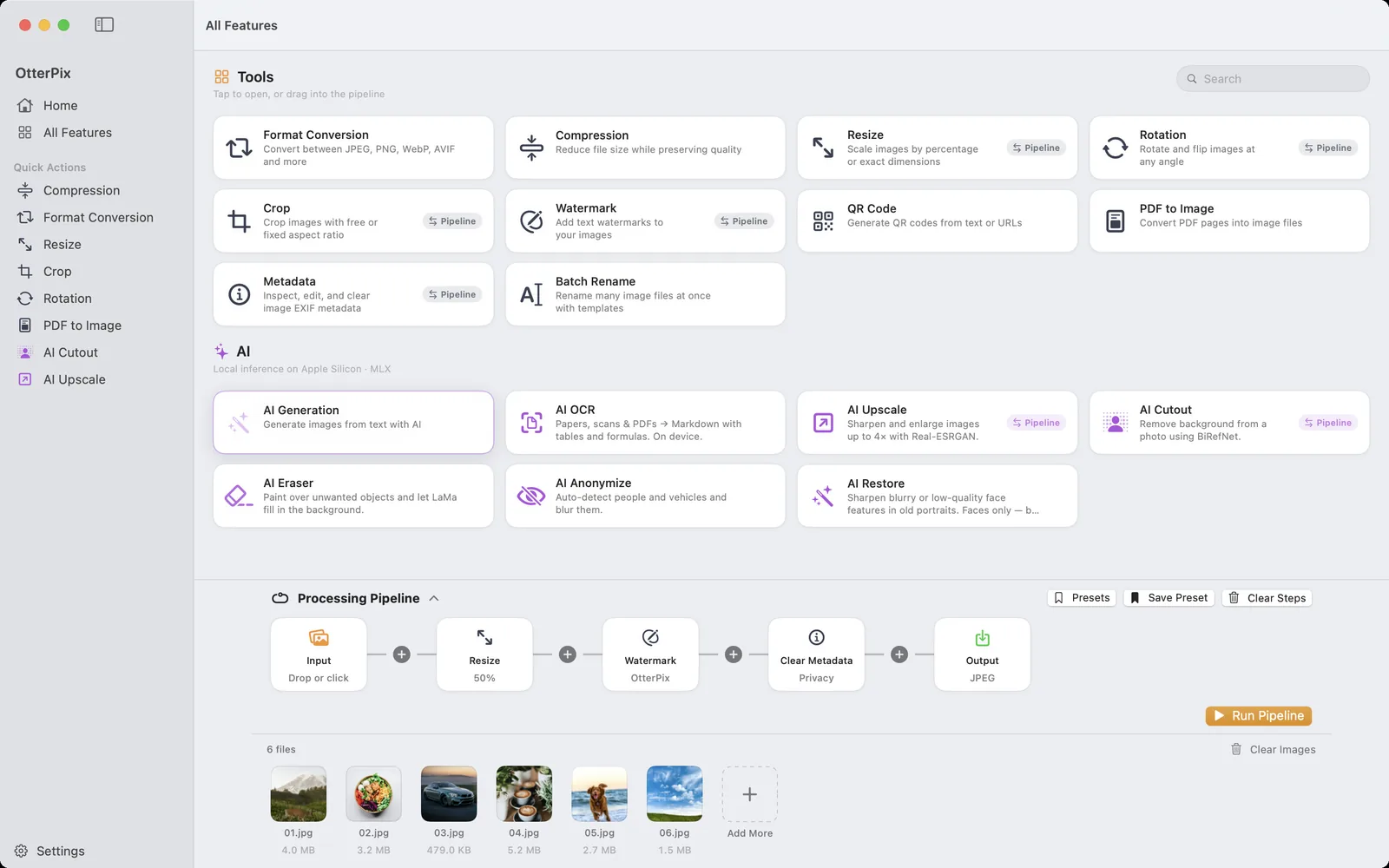
For a folder of files, skip the per-image routine and use the Pipeline — that is the exact setup in the screenshot at the top of this page. Drop the batch onto the Input node, add a Clear Metadata step and pick Privacy or All. The same chain can resize every image and stamp a text watermark in the same pass, and Save Preset turns it into a one-click routine for next time. Thirty listing photos go in; thirty cleaned, watermarked, web-sized copies come out.
Don’t platforms strip metadata for me?
Sometimes — and that is precisely the problem. Some social platforms re-process images on upload and drop most metadata along the way; the behavior varies by platform and upload path, and it is rarely documented. Plenty of everyday channels, meanwhile, do not touch your file at all: email attachments, cloud-drive links and many direct file uploads typically pass the original along, GPS and all. The only version you control is the one you strip before it leaves your Mac.
Frequently asked questions
What does EXIF data contain?
Typically the camera or phone model, lens, capture date and time, exposure settings (aperture, shutter speed, ISO, focal length) and the software used — plus GPS latitude, longitude and altitude if location was on. IPTC fields can add creator, credit, caption and copyright. OtterPix lists all of it in one table.
Can I remove only the GPS location and keep the rest?
Yes. Switch the Metadata tool to Edit mode and flip the Remove GPS toggle — camera, date and exposure fields stay. The Privacy clear preset goes one step further: it strips GPS plus camera identity, lens and creator, and keeps date, exposure and orientation.
Does removing EXIF affect image quality?
The operation targets metadata fields — the hidden text records, not the visible picture. OtterPix also saves the cleaned version as a new copy wherever you choose, so your original file stays untouched and you can compare the two any time.
How do I remove EXIF from many photos at once?
Load several images into the Metadata tool and work through them via the thumbnail strip — or, for whole folders in one run, add a Clear Metadata step to the Pipeline. It can resize and watermark in the same pass, and both routes are free.
Do social networks remove EXIF automatically?
Many platforms re-process uploads and drop most metadata, but the details differ per service and change over time — and email, cloud drives and direct file uploads generally pass the original file along. Treat platform stripping as a bonus, not a guarantee: the dependable route is removing metadata yourself before upload.
Get OtterPix for Mac
Free on the Mac App Store. Every basic tool is free forever, and nothing you open ever leaves your Mac.

Related guides
Blur Faces & License Plates in Photos on Mac, Automatically
Street or event photo? On-device AI finds people and vehicles — you pick who stays sharp.
Batch Convert, Resize & Rename Images on Mac — One Click
One folder in, finished images out: chain resize, watermark, convert and rename once.
How to Convert HEIC to JPG on Mac (Free & Offline)
iPhone photos that won’t open elsewhere? Batch-convert HEIC to JPG on your Mac, offline.