Automate Image Tasks on Mac with Shortcuts and AppleScript
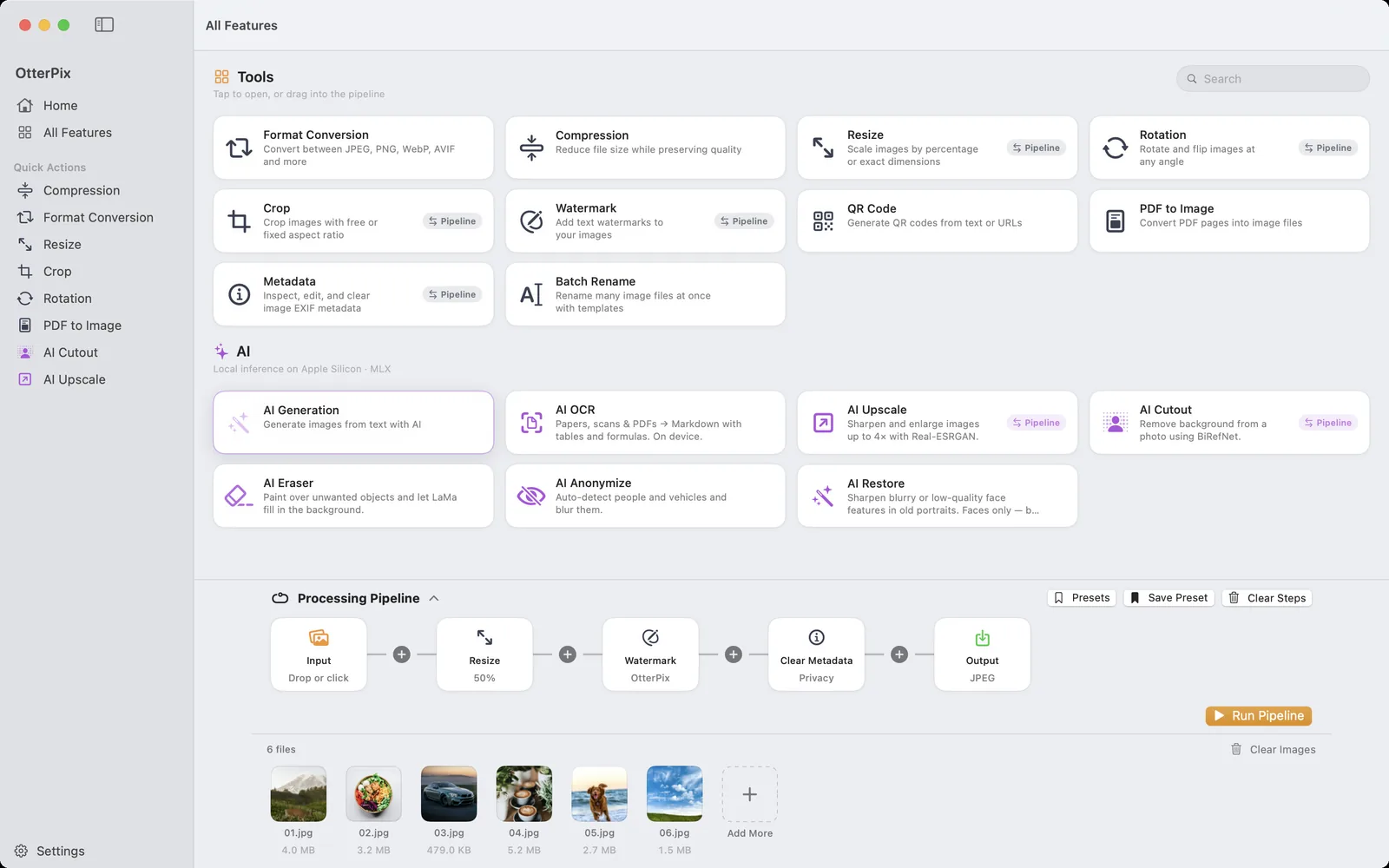
Some image jobs are too small to open an app for and too frequent to do by hand: shrink the screenshots you just took, turn a folder of HEIC photos into JPEG before upload, strip location data from everything going to a client. On a Mac, the natural home for that kind of chore is Shortcuts, or AppleScript if you already have scripts that move files around.
OtterPix plugs into both. It adds its own actions to the Shortcuts app and its own commands to AppleScript, all backed by the same tools you use in its window. The work happens on your Mac, nothing is uploaded, and the basic tools cost nothing in either place.
The OtterPix actions in Shortcuts
Open the Shortcuts app, search the action library for OtterPix, and you’ll find eleven actions. Each takes images as input and hands the processed files to the next step of your shortcut.
- Compress Image re-encodes images at a quality you set, keeping their format.
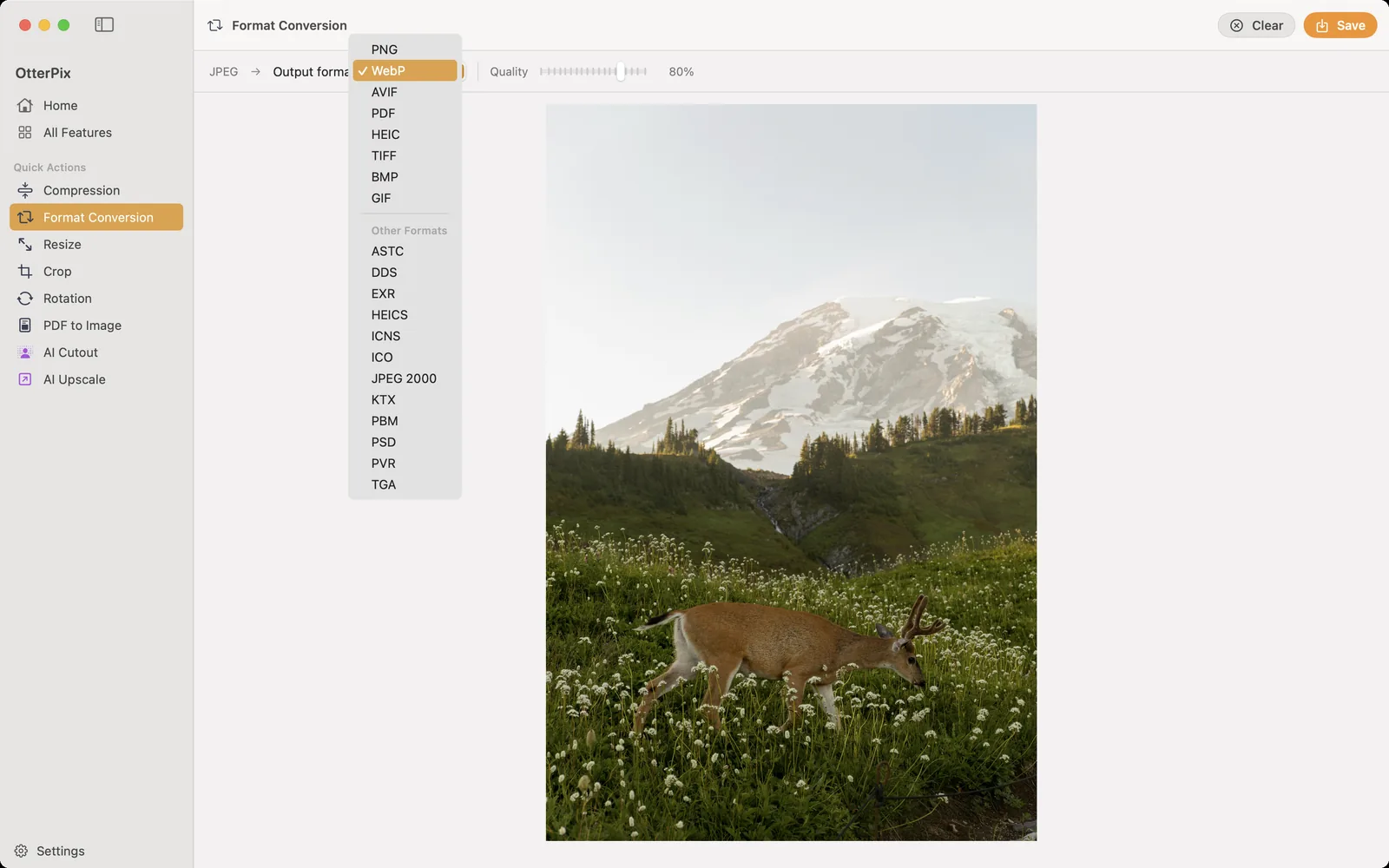
- Convert Image Format writes PNG, JPEG, WebP, AVIF, PDF, HEIC, TIFF, BMP or GIF.
- Resize Image scales by percentage or to exact pixel dimensions.
- Rotate Image turns images 90° clockwise, 180° or 90° counterclockwise.
- Crop Image to Ratio crops to 1:1, 4:3, 16:9, 3:2 or 9:16 with a chosen alignment, which works for batches where every photo is framed differently.
- Add Watermark tiles a text watermark with font, size, opacity, angle, density and color.
- Remove Image Metadata strips metadata without changing the format: Privacy removes GPS and identity fields, All removes everything.
- Run Pipeline Preset runs a chain you saved in OtterPix over the input images.
- Extract Text with AI OCR recognizes document text on device and returns Markdown.
- AI Upscale Image and Remove Image Background are the two AI image actions.
Build a shortcut that resizes and converts in one go
- Open Shortcuts and create a new shortcut.
- Start with an action that supplies images, such as picking photos, or let the shortcut receive the files you select in Finder.
- Search for OtterPix and add Resize Image. Choose By Percentage and set Scale (%), say 50, or switch to Exact Pixels and enter Width (px) and Height (px).
- Add Convert Image Format and pick the Format, for example JPEG or WebP, and the Quality (%).
- End with an action that saves files, so the converted images land in a folder of your choice.
- Run the shortcut. OtterPix processes the images and passes the finished files along.
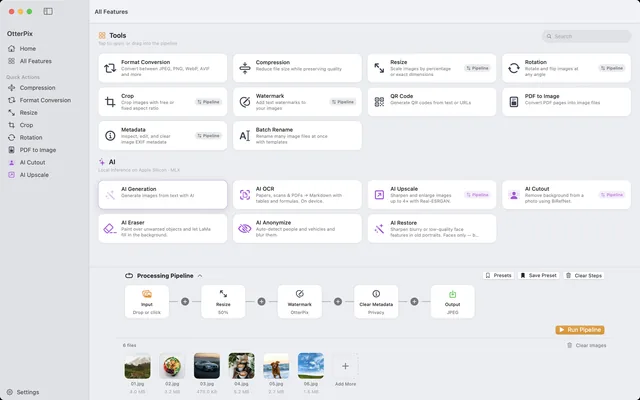
If you already built a chain in OtterPix’s Processing Pipeline and stored it with Save Preset, you don’t have to rebuild it in Shortcuts: Run Pipeline Preset takes the preset by name. It is also offered as a ready-made shortcut, so a saved preset can be started from Spotlight or Siri as well.
The AppleScript commands
OtterPix’s dictionary in Script Editor lists every command. There are nine: process (run a saved preset), convert, compress, resize, rotate, crop, clear metadata, upscale and remove background, plus stop, which ends the running command after the current image and cancels queued ones. Each command accepts files, aliases or a folder (only the images at its top level are used), up to 500 images per command, and returns the files it wrote. A few lines that work as written:
- tell application "OtterPix" to get name of every preset
- set src to choose folder
- tell application "OtterPix" to convert src to webp quality 0.8
- tell application "OtterPix" to resize src by percent 50
- tell application "OtterPix" to clear metadata src mode privacy
- tell application "OtterPix" to process src with preset "Client delivery"
The AI commands, upscale and remove background, can take minutes on a large batch. Wrap them in with timeout of 3600 seconds … end timeout, for example around tell application "OtterPix" to upscale src using photo, so AppleScript doesn’t give up after its default two minutes.
Which folders a script can use
macOS keeps apps in a sandbox, so a script can’t point OtterPix at any path it likes. Add the folders your scripts work with under Settings → General → AppleScript Access (Add Folder…): commands can read images from those folders and write results into them. Without an into parameter, results go to the Script Output folder inside OtterPix’s data, which always works; with into, the target folder needs to be one you granted.
What’s free and what needs Pro
All the basic tools are free in Shortcuts and AppleScript, and so is Run Pipeline Preset or process with a preset that has no Pro steps. Extract Text with AI OCR is free too. The AI image actions, AI Upscale Image and Remove Image Background in Shortcuts and upscale and remove background in AppleScript, need OtterPix Pro, as does running a preset that contains an AI step. If you want new files in a folder processed without running anything at all, Folder Automation, also a Pro feature, watches the folder for you.
Frequently asked questions
Are the OtterPix Shortcuts actions free?
The basic ones are: Compress Image, Convert Image Format, Resize Image, Rotate Image, Crop Image to Ratio, Add Watermark, Remove Image Metadata, Extract Text with AI OCR, and Run Pipeline Preset for presets without Pro steps. AI Upscale Image and Remove Image Background need OtterPix Pro.
Do Shortcuts or AppleScript runs use the daily free AI tries?
No. The free daily use of each Pro AI tool applies in the app window. From Shortcuts and AppleScript, the AI actions require Pro.
Why does my script say OtterPix can’t read or write a folder?
Because of the macOS sandbox. Add the folder under Settings → General → AppleScript Access, or leave out into so the results go to the Script Output folder.
Can I use a pipeline I saved in the app?
Yes. Save it with Save Preset in the Processing Pipeline, then use Run Pipeline Preset in Shortcuts or process … with preset "Name" in AppleScript.
Does anything get uploaded?
No. Shortcuts and AppleScript hand the files to OtterPix on your Mac, and every tool runs locally.
Get OtterPix for Mac
Free on the Mac App Store. Every basic tool is free forever, and nothing you open ever leaves your Mac.

Related guides
Watch a Folder on Mac and Auto-Convert Every New Image
Drop a photo into a folder and find the finished copy waiting beside it, without opening a single tool.
Batch Convert, Resize & Rename Images on Mac — One Click
One folder in, finished images out: chain resize, watermark, convert and rename once.
Resize Multiple Images on Mac to Exact Pixels or Percent
Every photo under 1920 px, or exactly half size? Scale a whole batch at once without stretching a single image.